Note: If your affiliate uses SSO, please contact your CSM before performing any imports to avoid creating duplicate accounts.
Option one: Pipeline Group Import
Within Pipeline Setup > People > Access Groups, a link will be available allowing Admins to Import Users into Groups. This option allows Admins to conveniently add both non-existing and existing users to a new Group that is then added to the General Access field. Non-existing users will be created upon import.
Clicking on this link will bring up a dialog box with an option to import a Group List.
The Group Import Template can easily be downloaded by clicking on the blue "Download Template" button when viewing the dialog box. Once the template has been downloaded, insert the user data to update your Users into Groups:
Note: Email Address is the only required field, however, since this process will create new users if they do not already exist in the system, including other user profile data is recommended.
Note: To ensure proper import of user data, do not edit the columns within the template. Altering the columns will cause the data to be improperly imported.
Option two: System Setup Group Import
Alternatively, there is an option to import existing users into new or existing Groups under System Setup > Users > Group Import. This option allows Admins to add existing users to either an existing Group or a new Group. If the Group name in the import file does not exist in the system, a new Group will be created. If the Group name in the import file matches a Group in the system, the users will be added to that existing Group.
- Save your template in .xls format
- Upload your file by selecting Upload File
- The wizard will confirm:
- If the member already exists in the group
- If the member exists in the system.
- You will then have the option to import the correct ones or go back to edit by selecting Cancel
- Once you are finished, select Import
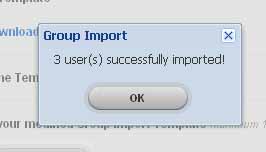
- If you need to run multiple group imports, please refresh your page after each import is finished to start clean with each batch.
Important Things to Note:
- When using Bulk Group Import, it will account for all duplicates, non-registered users, and prevent adding a user to a group more than once.
- Adding additional fields in the template will not create new profile fields.
- We recommend limiting imports to no more than 500 rows to avoid potential performance/timeout issues with the network.
- Do not include formulas in the spreadsheet; this will break the import process.
I'm about to import and it's saying to me, even though I've got email addresses in the email column and one group name in the group column:
130 groups will be created
Is this just a bug and 130 groups will not be created?
Hi Damian,
I believe that's just an incorrect label there, please go ahead and import. Just make sure the group is indeed the same for all users.
Thank you,
Brightidea Support
Can I import users are not registered yet to a group? I have already import the users but they haven't access brightidea for the first time yet.
Hi Rafaela,
Yes, if the users exist in your system (e.g. imported using user import), they can be added to a group. They do not need to have logged in.
Best,
Daniel He
Brightidea Support