The People pillar in Command Center is where you manage everyone in your Brightidea system. From one page you can find users, see their roles and activity, add or import new people, update profiles in bulk, award certifications and set up the invite email.
The People pillar in Command Center.
In this article
- Who it's for and what it's best for
- Getting started
- Users list
- User profile page
- Licenses and roles
- Administrators (Licenses tab)
- Add or import users
- Update existing user profiles
- Certifications
- Invite email
- Things to know
- FAQ
- Related articles
Who it's for and what it's best for
The People pillar is built for the Innovation Program Manager (IPM), the person who runs the Brightidea program for your organization, and other System Administrators. Use it when you need to:
- Onboard a new group of employees. Import everyone at once from a spreadsheet and send a branded invite email so they know where to go.
- Answer "who is this person and what can they do?" Open a profile to see the user's roles, licenses, activity metrics and certifications.
- Keep profile data current. Update departments, locations or other profile fields for many users in a single import.
- Handle people who leave. Deactivate users so they can't log in, while keeping the ideas, comments and evaluations they contributed.
- Track admin licenses. See how many administrators you have and which initiatives they manage.
How it works
The People pillar is organized into tabs:
| Tab or area | What you do there |
|---|---|
| Users | Search and sort every user, open profiles, deactivate or delete accounts, and add certifications to users |
| Licenses | See every user with an Administrator type role and your admin license counts over time |
| Import Users and Add User | Create new users one at a time or in bulk, and update existing profiles in bulk |
| Certifications | Create the certifications you can award to users |
| Invite Email | Design the email new users receive when you invite them |
Getting started
To open the People pillar, select the People icon from the Admin menu.
The People icon in the Admin menu.
Users list
The Users list is your directory of everyone in the system. It's the fastest way to find a specific person or check who hasn't logged in recently.
Sort the list by any of these columns:
- Name
- Screen Name
- Email Address
- Account Status
- Roles
- Last Login Date
The Users list with sortable columns.
Search for a user by name, screen name or email. The total number of registered users in your system appears next to the search bar.
Searching the Users list.
User profile page
The profile page gives you the full picture of one user. Open it when you're troubleshooting access, checking someone's involvement or deciding whether to deactivate an account.
To open a profile, search for the user, then select their Name, Screen Name or Email.

Opening a user's profile from the Users list.
Deactivate or delete a user
Deactivating is the safe choice when someone leaves or no longer needs access. Delete only when you need the account and its data removed for good.
- Open the user's profile page.
- Select the [...] menu button on the right side of the screen.
- Choose to deactivate or delete the user, then confirm.
The [...] menu on a user's profile page.
| Deactivate | Delete | |
|---|---|---|
| Can the user log in? | No | No, the account is gone |
| What happens to their data? | Submissions, comments, votes and action item results stay | The account and all data associated with it are permanently deleted |
| Can you undo it? | Yes, reactivate the user from the same menu | No |
| What you'll see | A note next to the user's name shows which admin deactivated them and when | The confirmation prompt shows an overview of what will be deleted so you understand the impact |
Key metrics
The profile page also shows the user's Key Metrics, Expertise and Endorsements, and Certifications. Key metrics help you spot your most engaged people, for example to recruit evaluators or program champions.
| Metric | What it measures |
|---|---|
| Overall Contribution | The user's percentile rank based on reputation points |
| Challenge Participation Rate | The challenges the user took part in (by voting, commenting or submitting an idea), divided by the total challenges available to them through their user access groups |
| Evaluation Participation Rate | The evaluation action items (Review, Single Scale or Scorecard) the user completed, divided by the total evaluation action items assigned to them |
| Complete Projects | The total number of projects with a Completed system status where the user is on the project team or is the project lead |
| Tracked Outcomes | The total revenue and cost savings for projects where the user is on the project team or is the project lead |
You can also add certifications to a user from here (see Certifications). Users see their certifications on their Enterprise profile page:
Certifications on a user's Enterprise profile.
Users who receive a certification are notified by email. You can edit this email in System Setup > Site > System Email Messages > Certification Received.
Licenses and roles
The Licenses and Roles section of a profile shows every role the user holds and the pipeline each role belongs to. It's the quickest way to check why someone can (or can't) manage an initiative.
- Users with admin roles can view another user's roles and licenses.
- To remove a user from all roles and licenses at once, select the ellipsis menu, then Remove all Roles. This is helpful when an admin changes jobs or leaves.
A user's roles and licenses, with the Remove all Roles option.
Administrators (Licenses tab)
The Licenses tab lists every user with an Administrator type role in your system, so you can keep an eye on admin license use.
The Licenses tab.
- See the total number of current administrators and which initiatives each one administers.
- The Summary of Max # of Administrators section shows your administrator license counts for the past 10 months.
Note: This tab supports a maximum of 350 administrators, not counting any Brightidea employee admins on your site.
For more on administrator licensing, including how to remove or update administrators, see this support article.
Add or import users
Bring people into Brightidea before your program launches so they're ready to participate on day one. Use import for groups, and Add User for one person at a time.
Import users in bulk
The Import Users feature lets you create many users at once from a spreadsheet.
- Select Import Users from the dropdown on the top right.
- Select Download Template.
Downloading the user import template.
- Fill in the template. Before you save it:
- Check that each email and screen name is correct.
- Remove all spaces and special characters from email addresses and screen names.
- Confirm the settings of the Excel template.
- Save the file as .xlsx or .xls.
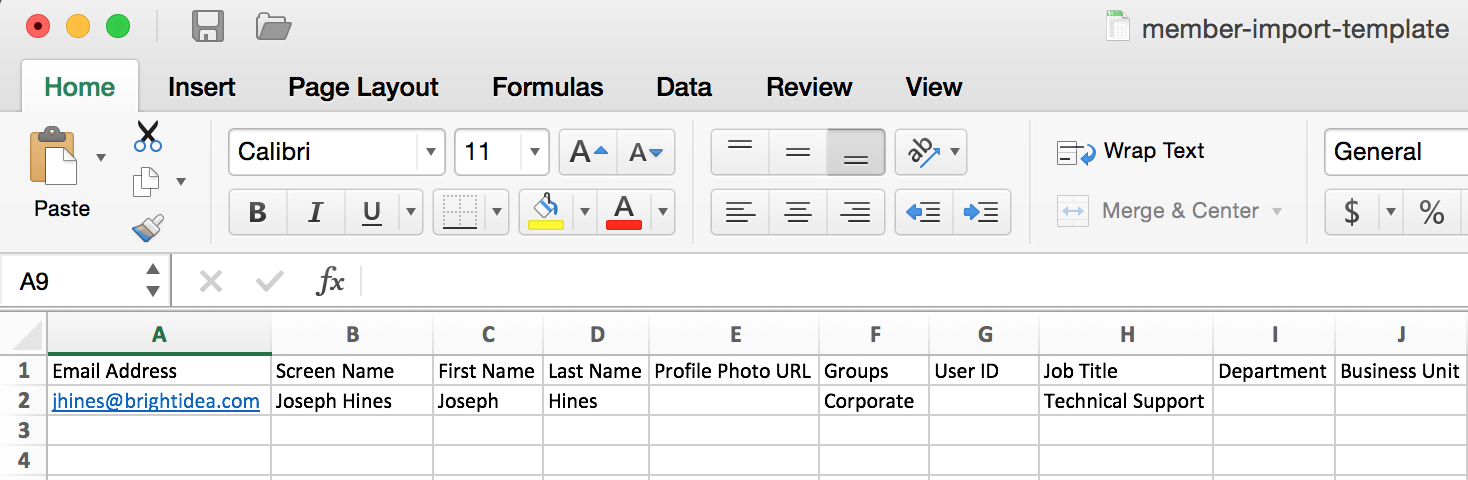
A completed import template.
- Back in the user import, select Choose File and pick the file you saved.
- The import scans your file and shows a preview. Review it before you finish the import.
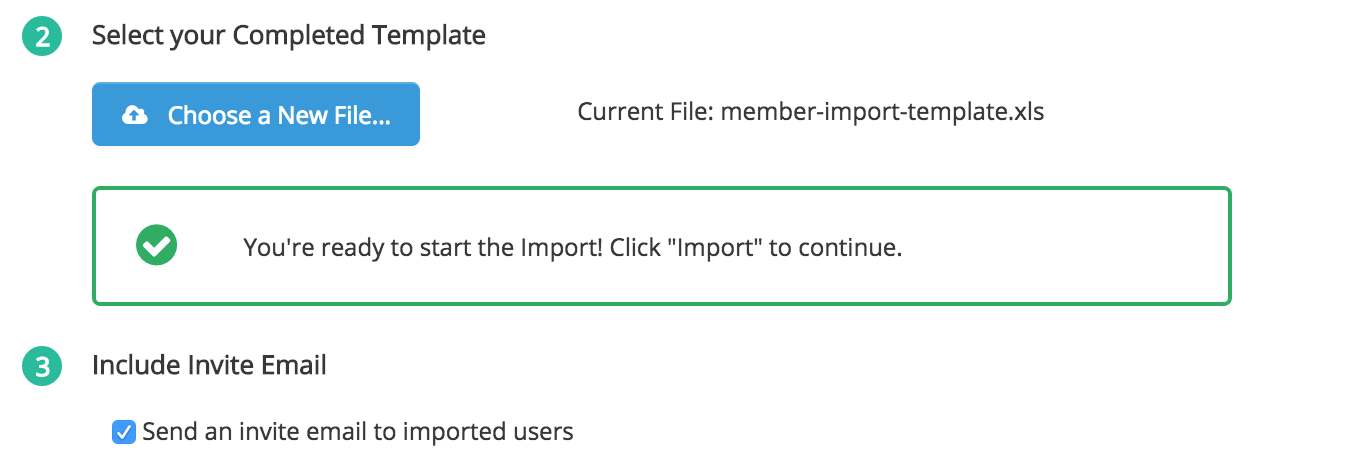
The import preview.
- Optionally, select Include Invite Email to email all newly imported users (see Invite email).
- Finish the import. You'll see a confirmation once all users are uploaded.

Confirmation that the users were imported.
Add a single user
- Select Add User.
- Fill in the user profile fields and any additional profile fields.
- Optionally, make the user an administrator and send them an email invite.
The Add User form.
Update existing user profiles
When many profiles need the same kind of change (for example after a reorganization), update them all with one import instead of editing each user.
- Use the same import template you use to add new users.
- Keep each user's Email exactly as it is in their current profile. Brightidea uses the email to find the account to update.
- Fill in the updated profile data.
- Run the import.
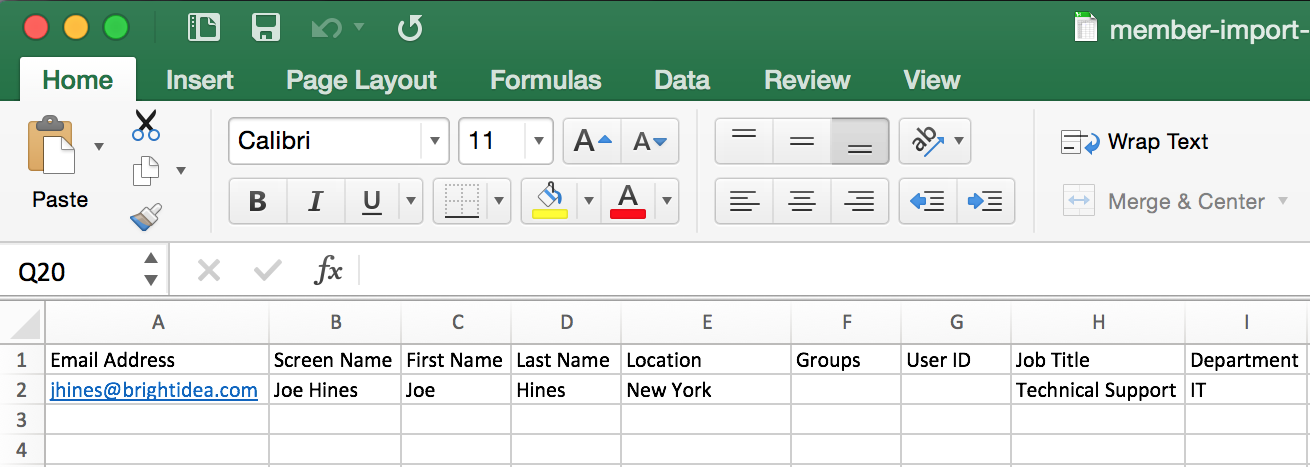
Updating profile fields in the import template.
You'll see a confirmation once all users are updated.
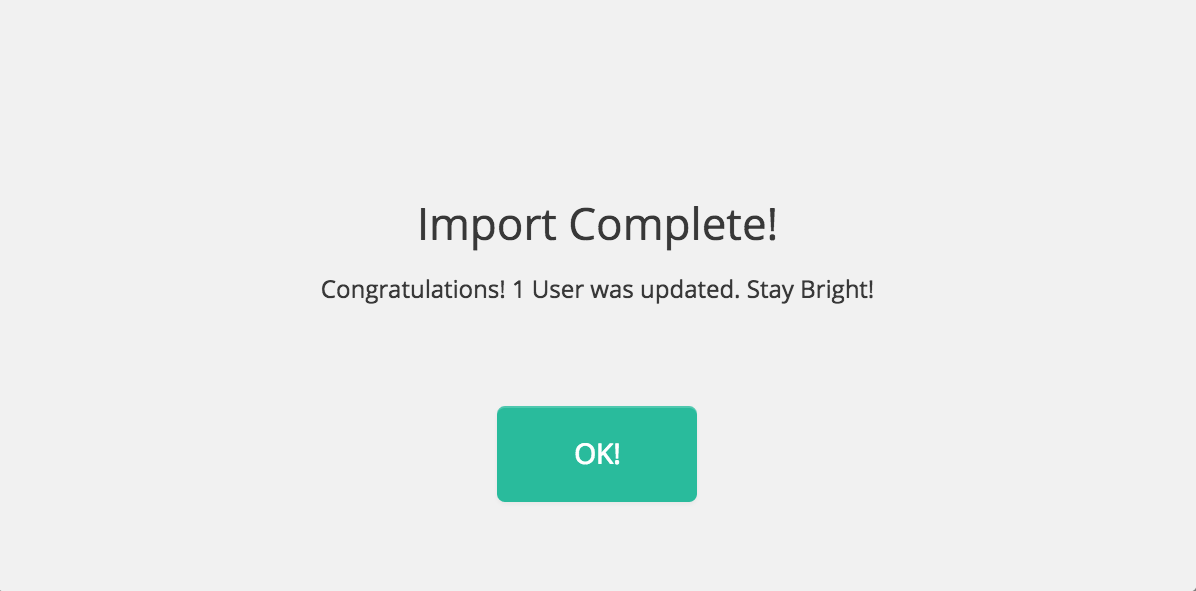
Confirmation that the users were updated.
Good to know when updating by import:
- Every profile field can be updated except Email, because the email identifies the account.
- The groups field isn't overwritten. New groups are added to the user's existing groups.
- Some profile fields, such as dropdown or checkbox fields, can get new values created if the value you import doesn't exist yet. Double-check spelling to avoid accidental new options.
[Placeholder: confirm whether to mention that the import template can also bulk update user status (active or inactive), and whether the Bulk Import and Update User Status article (47342139960723) is public so it can be linked here]
Certifications
Certifications let you recognize people for skills or training, such as completing an innovation course or serving as a trained evaluator. Create them once on the Certifications tab, then award them to users.

The Certifications tab.
Create a certification
- Open the Certifications tab.
- Type the name of the new certification.
- Select the color icon and choose a color.
- Select the plus icon to add it to the list.
- Select Save.
Naming a new certification and choosing its color.
Adding the certification to the list.
Award a certification to a user
- Go to the Users tab and open the user's profile.
- Add or edit their certifications.
- Select Update.
Adding a certification to a user's profile.
Invite email
The invite email is often a user's first impression of your program, so it's worth branding it and telling people why they're invited. This email is sent to newly imported or added users when you choose to invite them.
- Open the Invite Email tab.
The Invite Email tab.
- Set up the template:
- Upload a logo or image.
- Set the border and button colors.
- Write the email's subject and body.
- To personalize the email, pick a field from the dynamic field dropdown and select the plus icon.
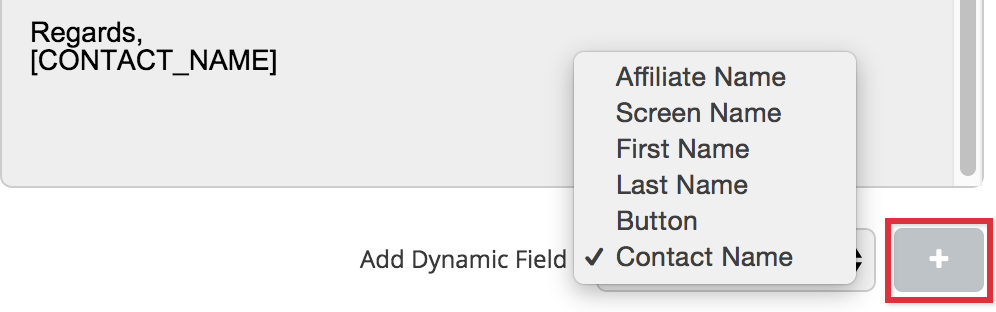
Adding a dynamic field to the invite email.
- Save the template.
- Select Send Test Email to check that everything looks right.
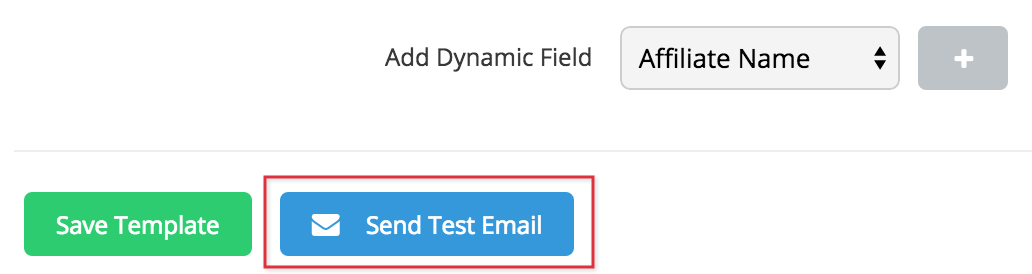
Sending a test invite email.
Things to know
- Deleting is permanent. It removes the account and all its data. Deactivate instead if you might need the user's contributions.
- Email is the account key. You can't change a user's email through an import, and imports use the email to match existing users.
- Group imports add, they don't replace. To remove someone from a group, edit the group or the user directly.
- The Licenses tab supports up to 350 administrators, not counting Brightidea employee admins.
- Certification emails use the Certification Received system email, so check it's turned on and worded the way you want.
FAQ
A user left the company. Should I deactivate or delete them?
In most cases, deactivate. They can no longer log in, but their ideas, comments, votes and evaluations stay in place, and you can reactivate them later.
How can I tell who deactivated a user?
Open the user from the Users list. A note next to their name shows the admin who deactivated them and the date.
My import created a new dropdown value I didn't expect. Why?
If a value in the file doesn't match an existing option exactly, some fields create it as a new value. Fix the spelling in your file and in the field options.
Can I get a list of all my users in a spreadsheet?
Yes. On the Users list, select the Excel export button. [Placeholder: confirm the export button label and location on the Users list]
A user says they can't manage an initiative. Where do I check?
Open their profile and look at Licenses and roles to see which pipelines they have roles in.
Where do these certifications show for the user or for others looking at the user profile?
Hi Damian,
Good question, it doesn't show anywhere right now (other than the People Pillar for Administrator). This is functionality that is planned to be built out in the near future.
Thanks,
Brightidea Support
When you say near future, when is that?
Hi Damian,
I would say late Q1 of 2016, but there is no specific ETA set right now.
Thanks,
Brightidea Support
I see that a user can add expertise, but where does this show for others?
Also, where do the accreditations show?
Hi Damian,
The expertise will only show up if someone visit a user's profile page that had expertise inputted by that user. They will not show up anywhere else at this time.
Can you clarify what you mean by "accreditations"? Are you referring to the People Pillar 'Certifications'? Those will only appear in the back-end for the administrators right now.
Thanks,
Ron
Brightidea Support